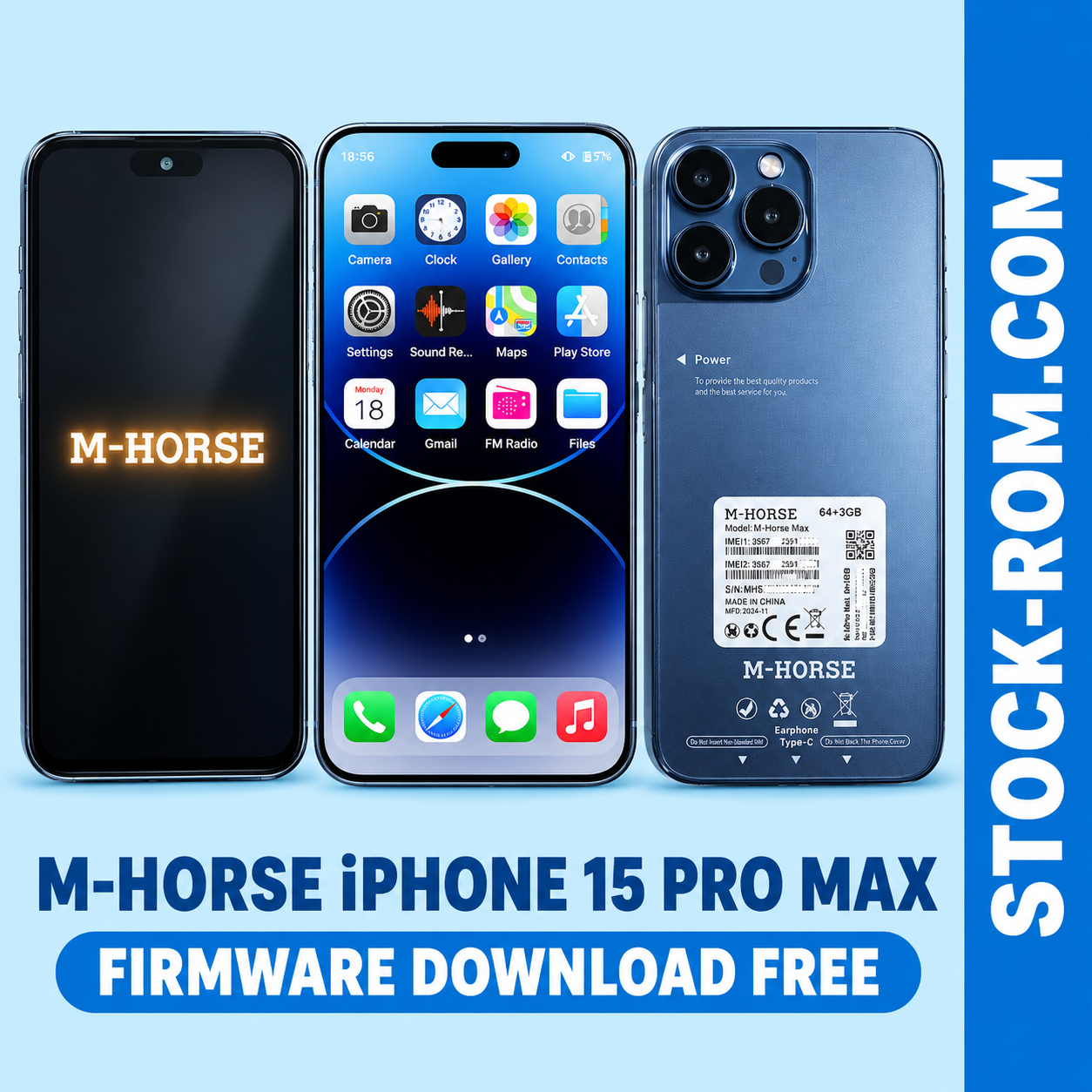
M-HORSE iPhone 15 Pro Max Firmware Flash File Free Download
Looking for the official stock firmware / flash file for the M-HORSE iPhone 15 Pro Max?
Here you can download the firmware and use SP Flash Tool to flash or repair the device.
📦 Firmware Details
Product Brand:M-Horse
Model:15 Pro Max
Firmware ID:MT6580_MIUI_U2_OSv11_RP1A.200720.011_U8_Pro
Build:Kdoce/Z8/Z8:10/QP1A.190711.020/12573:user/release-keys
Software:vnd_k80_bsp-user 11 RP1A.200720.011 mp1V8465 release-keys
Id:miui-u2-u8pro-u8-pro-k80-bsp-u2
🛠️ How to Flash M-HORSE iPhone 15 Pro Max with SP Flash Tool
This firmware is for the MediaTek MT6580 platform and can be flashed using
SP Flash Tool when the firmware package contains the required scatter file.
Requirements:
- Windows PC
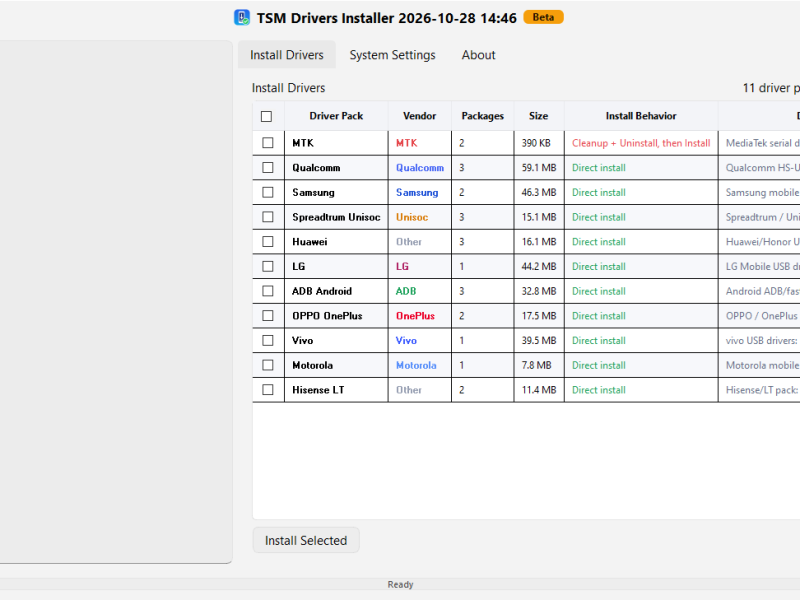
- MediaTek USB VCOM / Preloader drivers
- SP Flash Tool
- M-HORSE U8 Pro / U2 MT6580 firmware
- Good-quality USB cable
- At least 50% battery recommended
Step 1 — Extract the Firmware
Extract the downloaded firmware using 7-Zip or WinRAR.
Open the extracted firmware folder and look for a file similar to:
MT6580_Android_scatter.txt
The exact scatter filename may be different depending on the firmware package.
Step 2 — Install MTK Drivers
Install the appropriate MediaTek USB VCOM / Preloader drivers on your Windows PC.
After installing the drivers, restart the computer if required.
Step 3 — Load Scatter File
- Run SP Flash Tool as Administrator.
- Open the Download tab.
- Click Choose beside Scatter-loading File.
- Select the scatter file from the extracted firmware folder.
- Wait for SP Flash Tool to load the firmware partitions.
Step 4 — Select Flashing Mode
For a normal firmware reinstallation, start with:
Check that the required partitions are selected and that the files point to the correct
firmware folder.
Step 5 — Connect the Phone
- Power off the phone completely.
- Disconnect the USB cable.
- Click the Download button in SP Flash Tool.
- Connect the powered-off phone to the PC with USB.
- If necessary, hold a hardware key such as Volume Up or Volume Down while connecting.
- Wait for SP Flash Tool to detect the MediaTek preloader/BROM port.
The flashing process should start automatically once the phone is detected.
Wait until SP Flash Tool displays the Download OK confirmation.
💡 If the phone is completely dead
If the device does not power on or is not detected normally, the MediaTek preloader/BROM
connection may still be available. Try connecting the powered-off phone while holding the
appropriate volume key and check Windows Device Manager for a MediaTek USB/VCOM device.
⚠️ Important Flashing Instructions
- Always verify the firmware matches the exact hardware before flashing.
- Flashing firmware can erase user data.
- Make a backup before starting whenever possible.
- Do not disconnect the USB cable while flashing.
- Do not interrupt the flashing process once it has started.
- Use Download Only first for a normal firmware flash.
- If the phone is working normally, avoid flashing unnecessary partitions.
⬇️ Download M-HORSE iPhone 15 Pro Max Firmware