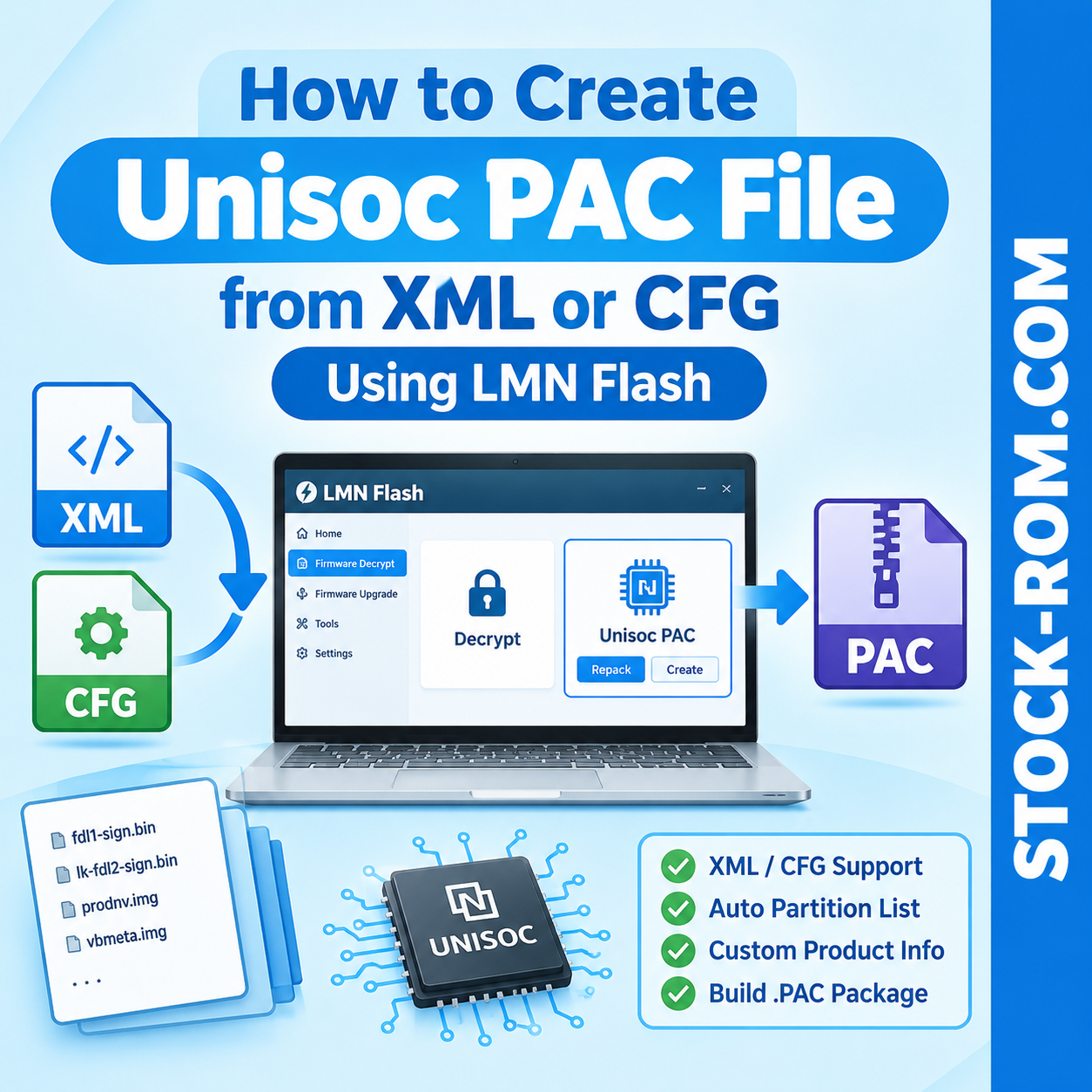
Learn how to create a standard Unisoc .PAC firmware file from extracted firmware images using a scatter .xml file or flash.cfg configuration with the LMN Flash utility. This method helps technicians rebuild a flashable PAC package when they have raw or extracted Unisoc firmware files.
Requirements Before Starting
- LMN Flash utility with Unisoc PAC Repack support.
- Extracted Unisoc firmware partition images.
- A compatible scatter .xml file or flash.cfg.
- All required firmware images stored in the same directory as the configuration file.
Example files may include fdl1-sign.bin, lk-fdl2-sign.bin, prodnv.img, vbmeta.img, and other partition images, depending on the device firmware.
Step 1: Open LMN Flash Tools
Launch the LMN Flash utility on your computer. From the main bottom menu, navigate to the Firmware Decrypt section.
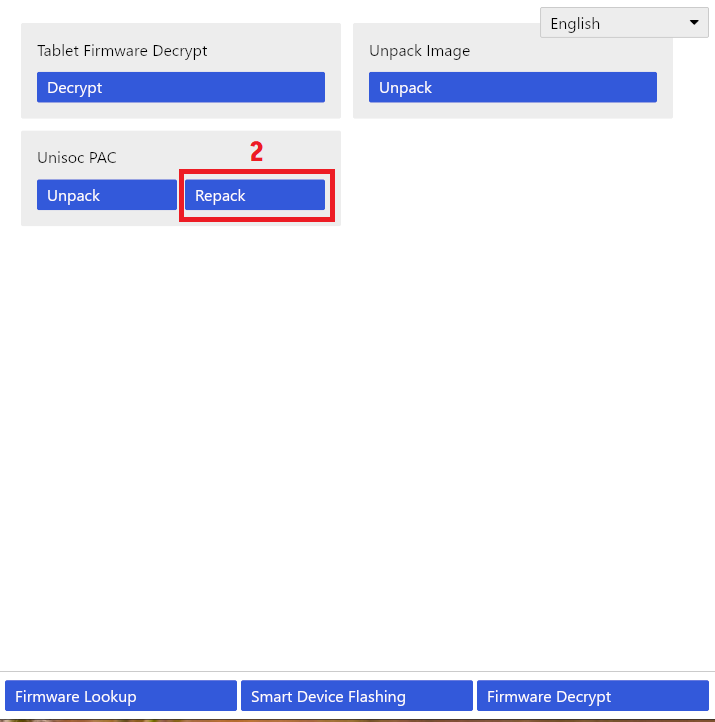
Locate the Decrypt and Unisoc PAC utility tiles on the screen. This section provides access to the firmware packaging tools.
Check: Confirm that the firmware utility dashboard displays the Unisoc PAC options.

Step 2: Select Unisoc PAC Repack
Find the Unisoc PAC box on the dashboard and click the Repack button.
The Repack Package window should open. This window allows you to load your firmware configuration, verify partition files, enter package details, and build the PAC archive.
Check: Make sure the Repack Package window is open before continuing.
Step 3: Load the XML or CFG Configuration
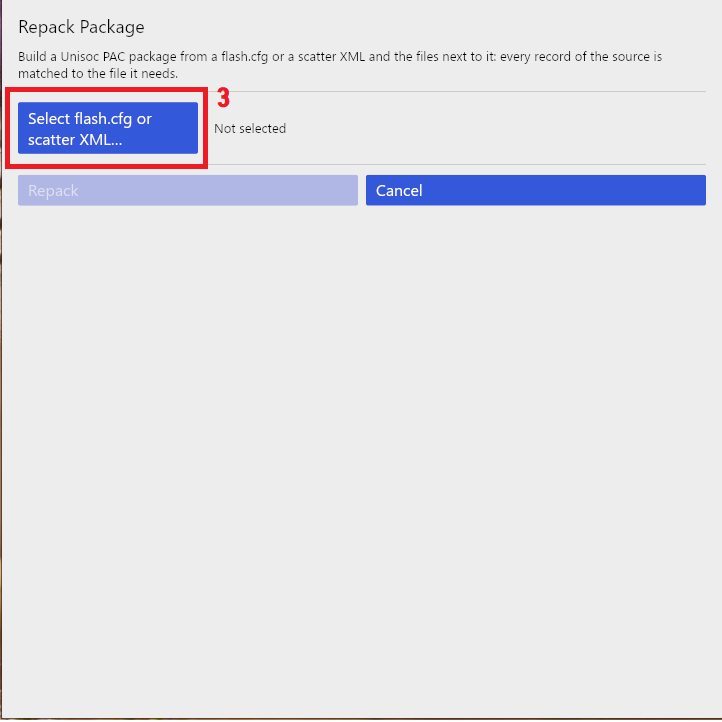
Click the Select flash.cfg or scatter XML… button. Browse to the directory containing your extracted Unisoc firmware files.
Select the correct configuration file, for example:
serenity_k515_in.xmlflash.cfg
After selecting the file, LMN Flash should display its path and populate the partition file list using the configuration information.
Check: Verify that the correct configuration file is loaded and the expected partition entries appear in the list.
Step 4: Enter Product Name and Version
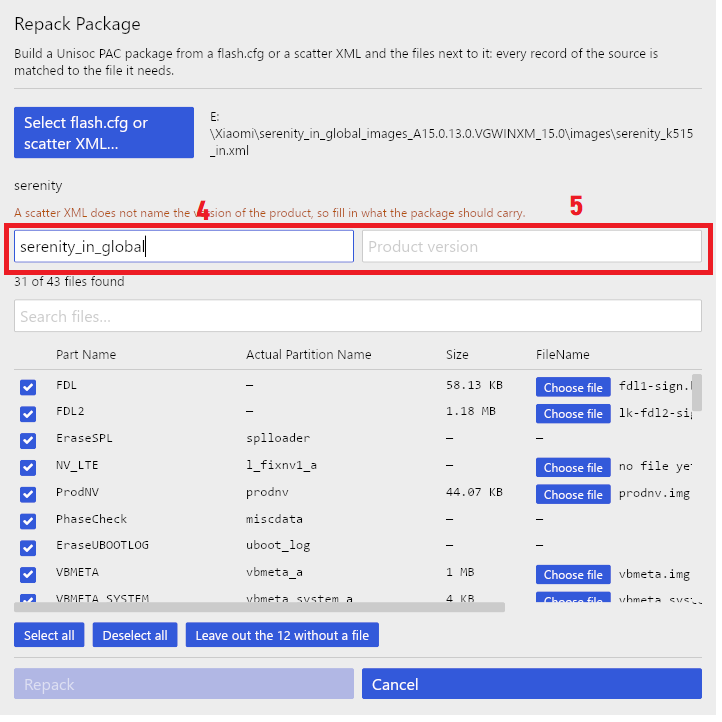
Check whether the loaded configuration automatically provides the firmware package information.
If the details are missing, manually enter the following fields:
- Product Name: Enter the appropriate device or firmware product name.
- Product Version: Enter the correct firmware version or build identifier.
Use accurate information from the original firmware package whenever possible. These fields help identify the generated PAC package.
Step 5: Check Partition Files and Missing Images
Review the partition list and confirm that the required firmware images are correctly mapped to their corresponding entries.
Some XML or CFG configurations may reference partitions for which no physical image file is present in the extracted firmware folder.
If LMN Flash identifies entries without image files, use the Leave out the [X] without a file option to deselect those entries automatically, when appropriate.
Important Technician Note
Do not blindly exclude every missing partition. Some entries may be important for the device’s firmware structure or repair requirements. Confirm that omitted entries are genuinely unnecessary for your intended package before proceeding.
For example, the file counter may change from 31 of 43 files found to 31 of 31 files found after entries without files are excluded.
Check: Confirm that all required images are available and the remaining partition list is suitable for packaging.
Step 6: Repack Firmware into a PAC File
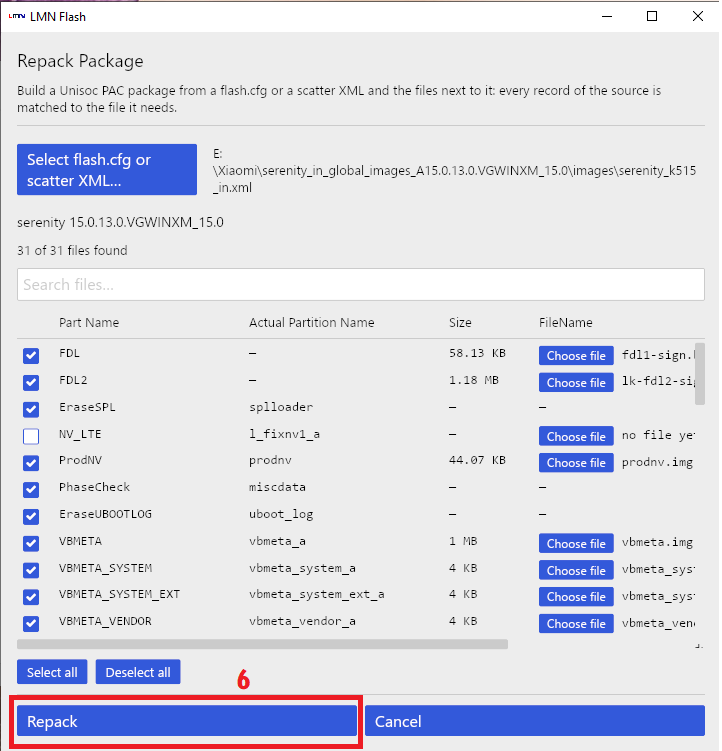
After checking the product details and partition list, click the Repack button at the bottom-left corner of the window.
LMN Flash will begin processing the selected firmware images and configuration data to build the PAC package.
- Wait until the packaging process finishes.
- Check the output location for the generated
.pacfile. - Confirm that the resulting file is present and that the utility reports successful completion, if a status message is provided.
The resulting PAC file can then be used with a compatible SPD/Unisoc Research Download or UpgradeDownload utility, subject to device and firmware compatibility.